The best time clock app for field service and construction crews is ClockShark, because it puts GPS clock-ins, job scheduling, job costing, and payroll export in one app built for crews that move between job sites. ClockShark time tracking software for field crews also gives crews without phones a Crew Clock and a shared Kiosk Clock, and includes free onboarding during the trial.
That said, it's not the right fit for every team. Connecteam, Homebase, Buddy Punch, and OnTheClock fit hourly shift teams, Clockify fits teams that track time across projects, Hubstaff and Timeero fit mobile field teams that want GPS job site timers, and QuickBooks Time fits companies already running QuickBooks Online, since it requires a QuickBooks Online account. Workyard, BusyBusy, Raken, CrewTracks, ExakTime, and HCSS HeavyJob lean toward construction crews with cost codes and foremen.
Best time clock apps at a glance
Use this table as your shortlist of the best time clock app options by team type. Prices change often, so it's worth confirming the current figure on the vendor's pricing page before you buy, and start with the apps whose trial or free plan lets you test a real crew on real job sites.
| App | Best for | Starting price (as of October 2026) | Free trial or free plan |
|---|---|---|---|
| ClockShark | Field service and construction crews that move between job sites | Trial accounts get every Pro plan feature for 14 days | 14-day trial with Pro features; you pay only for users that are active |
| Connecteam | Deskless and frontline teams that want one all-in-one app | Basic is $29 per month for the first 30 users | Free for up to 10 users; 14-day trial of the Expert plan |
| Buddy Punch | Hourly employees who work in more than one place | Starter is $4.99/user/mo plus a $19 base fee per month | 14 days free, no credit card required |
| OnTheClock | Teams that want simple time tracking and scheduling | $4/employee/month plus a $5 base fee per month, billed monthly | Free 30-day trial, no credit card required |
| Workyard | Construction crews that need geofence rules and cost codes | Plans start at $6 per user per month, billed annually | Free for 14 days, no credit card required |
| CrewTracks | Construction contractors with self-performing crews | Custom quote | Not a free app; demo first |
| QuickBooks Time | Companies already on QuickBooks Online | Time Premium is $10 per user per month plus a base fee that includes 1 admin | Requires a QuickBooks Online account |
| Clockify | Teams that track time across projects | Free for up to 5 users; Basic is $4.99 if billed monthly | Free plan for up to 5 users |
| Hubstaff | Field teams that want automatic job site timers | Pricing FAQ example: Team plan at $10 per seat per month | Free 14-day trial, no credit card required |
| Timeero | Mobile teams moving between job sites and service calls | Basic lists $5 per user/month | 14-day trial |
| Raken | Construction teams capturing time from the jobsite | Custom quote | Free 15 day trial of the Performance plan, set up by sales |
| ExakTime | Construction crews that want rugged on-site time clocks | Time Essential starts at $9 per employee per month, billed annually | Zero-risk 14-day free trial after a form |
| BusyBusy | Construction companies that want to start free | Free account with GPS time tracking and job costing | Try Pro free for 14 days |
| HCSS HeavyJob | Self-performing civil, infrastructure, and utility contractors | Custom quote | Not stated |
| Homebase | Restaurants, retail, and hospitality teams | Basic is $0 per location per month for 1 location, up to 10 employees | Free 14-day trial of All-in-One |
Key takeaways
- Pick the app built for how your crews work: the best GPS time clock app for field crews pairs GPS clock-ins with job tracking and a fallback for workers without phones.
- Setup effort comes down to adding employees, creating jobs and cost codes, drawing geofences, building a schedule, and connecting payroll. It's worth shortlisting the apps that cover those steps out of the box.
- Compare the full cost, including base fees, admin licenses, billing terms, and contract length, not only the per-user price.
- Decide whether you schedule shifts, field jobs, or project time before you compare scheduling features.
- Run one real crew through a free trial for a week before you roll out to everyone.
Which time clock app is easiest to set up?
For field crews that need time tracking and job scheduling in one app, ClockShark is simple to implement because setup help is included: it offers free onboarding during the trial and on regular plans. Once an admin adds employees, they get an email with login details and a link to download the ClockShark app.
ClockShark employees who download the app and sign in can start tracking time in minutes. Whichever app you pick, you'll work through the same setup tasks: adding employees, creating jobs and cost codes, drawing geofences, building a schedule, and connecting payroll. Use this checklist to see which app covers each step out of the box.
ClockShark users describe the same experience. Linda B., an accounting manager in construction, wrote in a ClockShark review on Capterra: "Implementing ClockShark for our time tracking has been great."
| App | Location clock-in | Shared device for crews | Scheduling | Job costing or job time | Payroll and accounting | Setup help |
|---|---|---|---|---|---|---|
| ClockShark | GPS on every punch and geofence reminders | Crew Clock and Kiosk Clock | Drag-and-drop schedules | Time by job and task; Job Costing on Pro | QuickBooks, ADP, Sage, Xero, Paychex, Gusto | Free onboarding, including during the trial |
| Connecteam | GPS clock-in and geofenced work areas | Kiosk app on a tablet | Basic scheduling and job auto-assignment | Time per job, project, or client | ADP, QuickBooks | Customer Success Team during the trial |
| Buddy Punch | Geofencing that restricts punches to approved locations, on Pro | PIN or kiosk punch | Scheduling as a paid add-on | Hours by job, location, or project | QuickBooks, Gusto, ADP | Priority Onboarding on Advanced |
| OnTheClock | GPS and geofencing on every plan | Tablet kiosk | Scheduling on every plan | Not stated | QuickBooks, Gusto, ADP, Paychex | Dedicated onboarding for larger teams |
| Workyard | Clock-ins allowed only inside geofences | Kiosk with centralized login | Scheduling on Pro | Can require projects and cost codes | QuickBooks Online, QuickBooks Desktop, ADP, Gusto | White glove support for the payroll connection |
| CrewTracks | GPS tracking and geofencing | Foreman Photo Timeclock | Jobs, crews, equipment, and materials | Time to jobs, phase codes, or categories | Customers use Foundation, ComputerEase, Sage, QuickBooks | Guided onboarding for a one-time fee |
| QuickBooks Time | Geofence clock-in reminders | Time kiosk on Premium | Scheduling on all plans | Project tracking on Elite | QuickBooks Online required | Call or chat support |
| Clockify | Location tracking on Pro | Kiosk on a shared device | Scheduling on Pro | Cost codes as tasks or tags; custom fields on Pro | QuickBooks, Xero | Tailored onboarding session on upgrade |
| Hubstaff | Geofenced job sites that start and stop the timer | Not stated | Calendar-based shift scheduling | Expense tracking for job costing | QuickBooks Online, QuickBooks Desktop | Workers install from an emailed link |
| Timeero | Auto clock-in and geofencing on Pro | Facial recognition kiosk on Premium | Scheduling on Pro | Job tracking on Pro | QuickBooks, Gusto on Pro | Expert-Guided Onboarding |
| Raken | Geofencing with project radius rules | Kiosk mode on one shared device | Resource scheduling | Unlimited custom cost codes | Sage, Foundation, ComputerEase, QuickBooks, Paychex | Free support and onboarding |
| ExakTime | Geofencing to the jobsite | Rugged time clocks with colored key fobs | Job assignment scheduling | Project and cost codes | QuickBooks, Sage, and other payroll systems | Dedicated implementation team |
| BusyBusy | GPS clock-in reminders | Kiosk/punch clock | Daily schedules | Project and cost code at clock-in | QuickBooks Online, ADP, Procore | Not stated |
| HCSS HeavyJob | Not stated | Foreman time cards on a mobile device | Resource Planner crew scheduling | Job costing by cost code | Sage, ViewPoint, QuickBooks | Dedicated implementation specialist |
| Homebase | GPS time clock | PIN clock-in and tablet photos | Shift trading and open shifts | Labor costs by role or department | ADP, Gusto, QuickBooks | Not stated |
Vendors also publish how fast setup can go. OnTheClock says setup takes 2 minutes or less, Hubstaff workers install the mobile app from an emailed link in under a minute, and CrewTracks says it can get you up and running in a few days. Construction-heavy tools with cost codes and payroll connections tend to come with guided onboarding instead.
How we chose these time clock apps
To find the best employee time clock app for each team, we judged apps on what each vendor's own product and pricing pages say. An app made the list when it covered most field-team needs: location on every clock-in, a fallback for workers without phones, scheduling, job time, payroll export, and a usable pricing page or trial.
Accurate punches matter because keeping time records is a legal duty. Federal rules require employers to keep records that include hours worked each workday and total hours worked each workweek for each employee, and the Department of Labor says employers may use any timekeeping method they choose, as long as the plan is complete and accurate. The rules prescribe no particular order or form of records, so a time clock app that records hours with every punch helps keep that record complete and accurate.
The 15 best time clock apps for field service teams
Every app below records time from a phone, but each one is built for a different kind of team. ClockShark comes first because it's built for crews that work across job sites. Start with the heading that matches your crew, then check its price and watch-for notes before you start a trial.
1. ClockShark: best for field service and construction crews
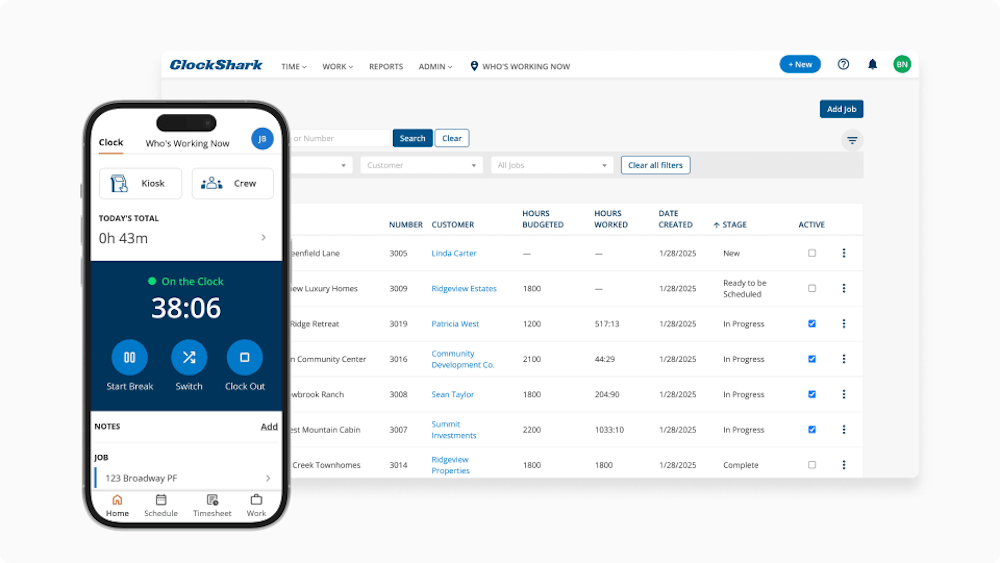
ClockShark is time tracking and scheduling software designed for field service and construction teams, built for crews that clock in on phones, move between job sites, and often have a foreman running the day.
On the clock-in side, the ClockShark app grabs GPS coordinates from the phone for each clock in and clock out, sends a push notification to clock in or out when an employee enters or leaves a job site, and sets reminders at the start and end of scheduled shifts. ClockShark's Crew Clock lets a supervisor or foreman punch the clock for the crew, including anyone who has no phone.
For shared devices, ClockShark Kiosk Clock lets multiple crew members clock in and out using a 4-digit PIN with facial recognition, and it can sit in a central location. Timesheets export right into your payroll or accounting system, and ClockShark connects with QuickBooks, ADP, Xero, Zapier, Paychex, Gusto, and MYOB.
Scheduling and job costing sit in the same app. With drag-and-drop employee scheduling, you build shifts with the right employees, jobs, and tasks, and ClockShark notifies employees on their phones and by email whenever the schedule changes. On the Pro plan, job costing compares bid vs. actual cost, shows gross profit and margin for every job you track and sends an email alert the day a job's total cost passes its bid.
Price and setup: ClockShark trial accounts get all the features of the Pro plan, and you'll pay only for users that are active, for the days they were active. All customers get live help and setup assistance, even during the trial, and your employees, jobs, and timesheet data stay put when you sign up after the trial.
Watch for: a contract term of three years applies to all ClockShark pricing plans, and Job Costing is a Pro plan feature, so it's worth confirming the plan and contract terms on ClockShark's pricing page before you sign up.
2. Connecteam: best for deskless teams that want an all-in-one app
Connecteam brings scheduling, time tracking, communication, and HR into one simple app. It's suited to frontline teams that want one app for more than the time clock.
Connecteam's employee time clock app can geofence work areas to avoid early off-site clock-ins and missed clock-outs, automatically clock employees out with GPS when they leave the site, and run a kiosk on a tablet so everyone clocks in from one station. Time tracking can also be set up per job, project, or client. On field jobs, Connecteam can auto-assign jobs by availability, skills, certifications, or location and integrates with ADP, QuickBooks, and Zapier.
Plans and trial: Connecteam is entirely free for up to 10 users, and Basic is $29 per month for the first 30 users. The 14-day trial lets you use the Expert plan, and its Customer Success Team helps you during those 14 days.
Keep in mind: the free Limited plan doesn't include everything in the trial, so you'll lose some capabilities when the trial ends.
3. Buddy Punch: best for hourly employees who work in more than one place
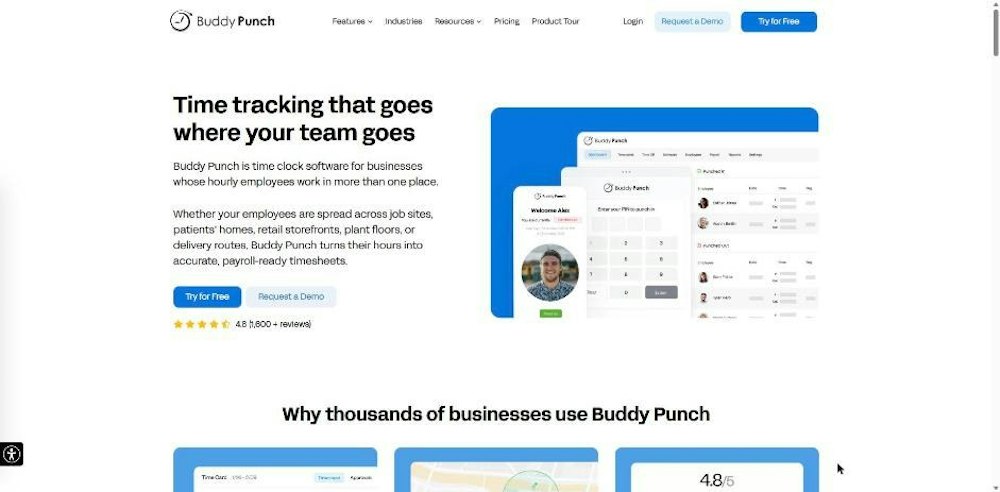
Buddy Punch describes itself as time clock software for businesses whose hourly employees work in more than one place. Payroll integrations include QuickBooks, Gusto, and ADP.
Buddy Punch's geofences feature lets you prevent offsite punches and remind employees to clock in or out when they arrive at or leave a work site. Employees can punch in from a shared kiosk device, and job tracking records hours by job, location, or project.
Cost: Starter is $4.99/user/mo, plans add a $19 base fee per month, and you'll get 14 days free with no credit card required. The Advanced plan includes Priority Onboarding with hands-on setup help.
Check first: geofencing and offline punching are Pro plan features, and scheduling is an add-on at $1 / user / mo, so it's worth pricing the plan you'll actually need.
4. OnTheClock: best for teams that want a simple time clock with scheduling
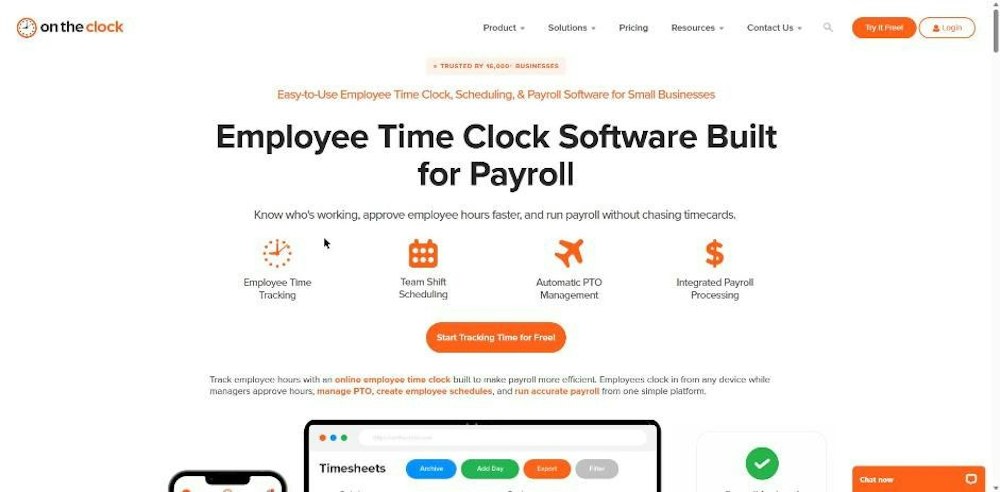
OnTheClock bills itself as easy-to-use employee time clock, scheduling, and payroll software for small businesses, and says setup takes 2 minutes or less. Any tablet can become a check-in station, and OnTheClock offers job, location, and department scheduling.
What it costs: time tracking, scheduling, and PTO management is $4/employee/month plus a $5 base fee per month after a free 30-day trial. Every plan includes GPS and geofencing, scheduling, and payroll integration, with one-click connections to QuickBooks, Gusto, ADP, and Paychex, and dedicated onboarding is available for 25+ employees.
Extra cost: OnTheClock Payroll carries a required, one-time payroll migration and onboarding fee of $250, so it's worth budgeting for if you plan to run payroll there too.
5. Workyard: best for construction crews that need geofence rules
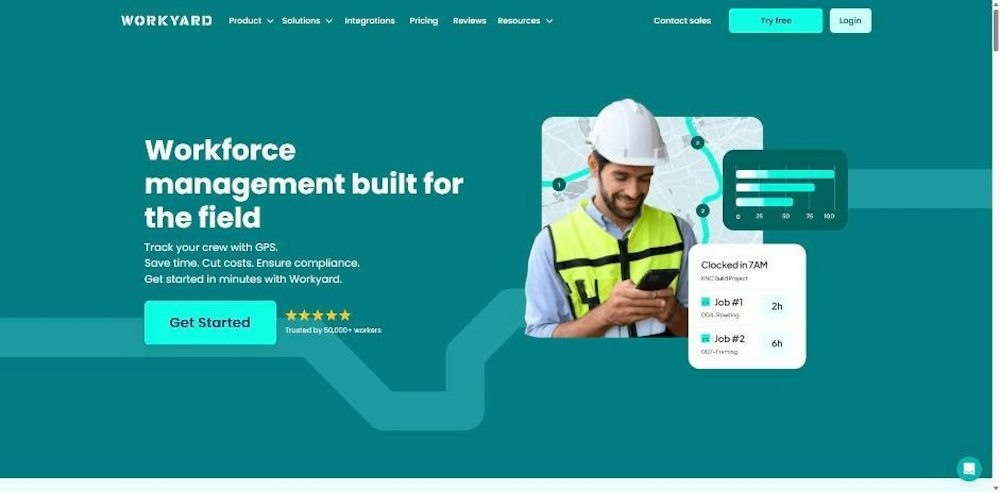
Workyard provides workforce management software built for the field. It detects when workers forget to clock out and trims the time card to the last site visited.
With Workyard, you can allow clock-ins only inside set geofences, require crews to assign time to projects and cost codes, and calculate project labor costs on every clock out. Time exports in one click to QuickBooks Online, QuickBooks Desktop, ADP, and Gusto, and you can import employees from your payroll system.
Pricing: plans start at $6 per user per month, billed annually, and you can try it free for 14 days with no credit card required. Workyard's white glove technical support helps connect it with your payroll system.
Billing note: scheduling is part of the Pro plan, and the starting price is billed annually, so it's worth checking both before you commit.
6. CrewTracks: best for self-performing construction crews
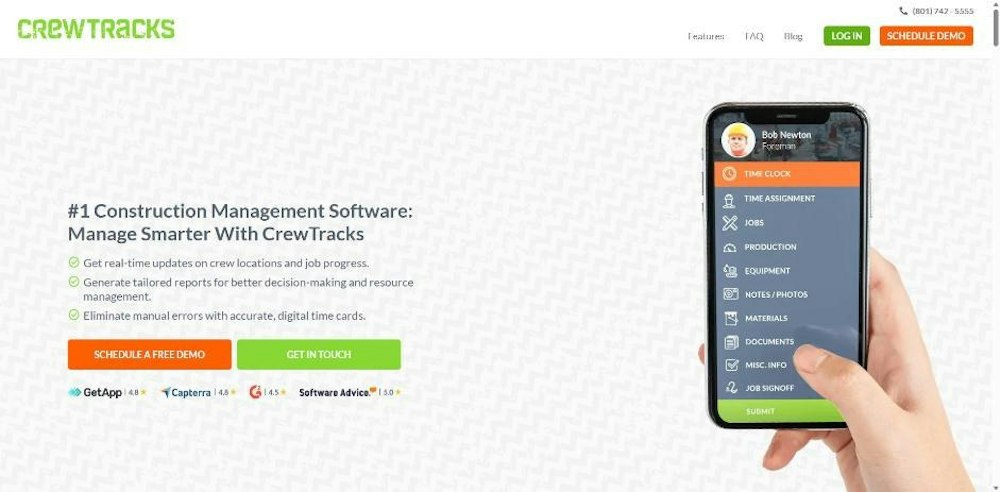
CrewTracks says it's a perfect fit for construction contractors with self-performing crews. Its Photo Timeclock lets crew leads or foremen clock their crew in and out, geofencing defines where employees can clock in, and job tracking allocates time to jobs, phase codes, or categories. It can also require crews to job cost all time worked, and the app works offline.
CrewTracks schedules jobs or phases, crews, equipment, and materials, and its customers use systems such as Foundation, ComputerEase, Sage, and QuickBooks.
Getting started: CrewTracks builds a custom quote after a free demo. It says it can get you up and running in a few days, and the subscription includes unlimited training and support from a dedicated account manager.
Budget for: CrewTracks charges a one-time guided onboarding fee that depends on your needs and company size, so you'll want that figure in the quote.
7. QuickBooks Time: best for companies already on QuickBooks Online
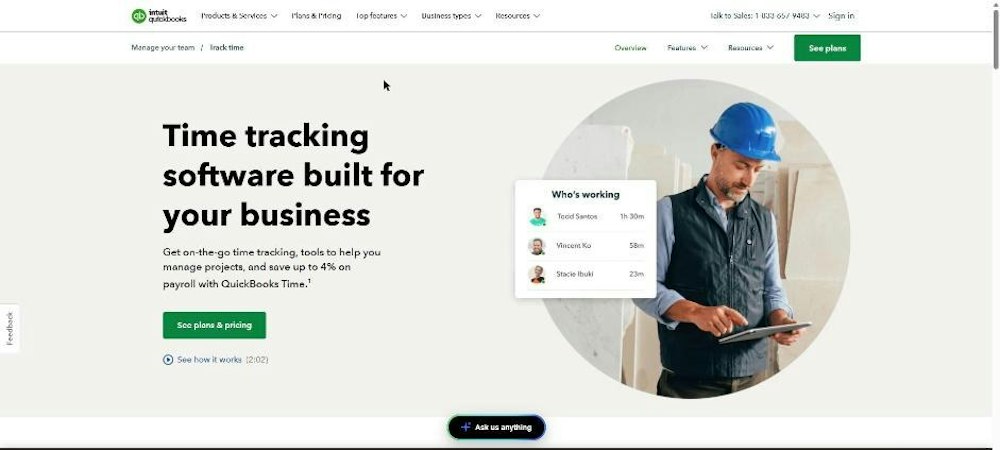
QuickBooks Time offers time tracking software for construction, landscaping, home healthcare, and more, and you can set up a geofence that reminds your team to clock in or out when they enter or leave a job site.
Plans: Time Premium adds $10 per user per month on top of a base fee that includes 1 admin, and includes the Workforce app, alerts, and a time kiosk. All plans include scheduling, Elite adds project tracking and estimates vs. actuals, and you can call or chat with the support team.
Requirement: you can't use QuickBooks Time without a QuickBooks Online account.
8. Clockify: best for teams that track time across projects
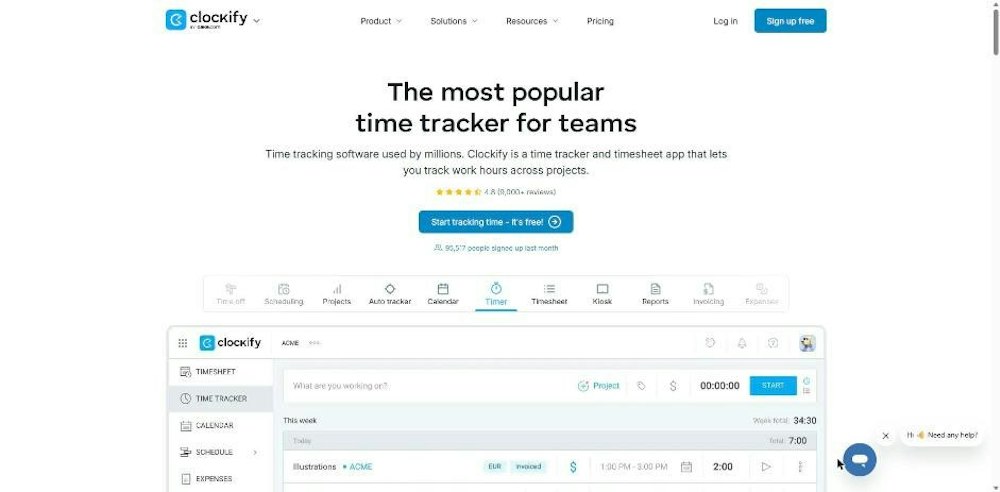
Clockify is a time tracker and timesheet app for tracking work hours across projects. For construction teams, it shows labor costs per cost code by setting cost codes as tasks, tags, or custom fields. Clockify's featured integrations include QuickBooks and Xero.
Pricing tiers: the free plan is $0 for up to 5 users, Basic is $4.99 if billed monthly, and Pro, at $9.99 if billed monthly, adds scheduling, labor cost, and GPS tracking. Kiosk clock-in from a shared device can capture photos to avoid buddy punching, and you'll get a free 30-minute tailored onboarding session when you upgrade.
Seat rule: every active or invited user on your Team page occupies one paid seat, and that's true for owners and admins too.
9. Hubstaff: best for field teams that want automatic job site timers
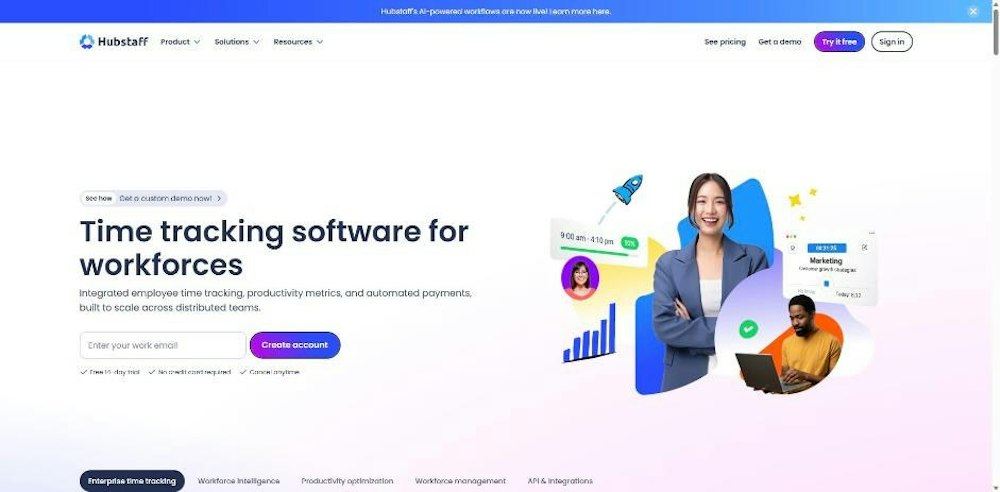
Hubstaff offers GPS-powered mobile time tracking built for field teams. You create geofenced job sites, and the timer starts or stops when a worker enters or leaves. It also tracks expenses for job costing and exports time to QuickBooks Online and QuickBooks Desktop. Workers install Hubstaff's mobile app from an emailed link in under a minute.
Managers can create shifts and assign employees with Hubstaff's calendar-based scheduling.
Trial and pricing: in the pricing FAQ example, the Team plan costs $10 per seat per month, and you can start a free 14-day trial with no credit card required.
Seat billing: Hubstaff charges per seat, so you pay for every team member even if some don't use tracking features.
10. Timeero: best for mobile teams moving between job sites
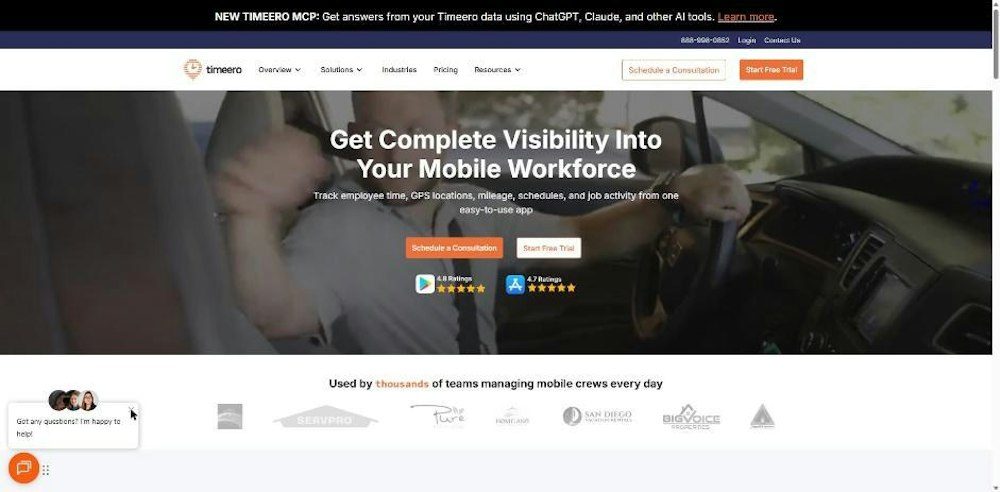
Timeero is built for teams that are always on the move, from job sites to service calls. With Timeero Auto Clock-In/Out, your team is clocked in when they arrive at the job site and clocked out when they leave. Timeero's payroll connections include Gusto and QuickBooks.
Plans and onboarding: Basic lists $5 per user/month, and Pro lists $7.50 and $9 per user/month, adding auto clock-in, job tracking, scheduling, geofencing, and payroll integrations. There aren't any base fees, the 14-day trial includes help getting going, and Expert-Guided Onboarding has a specialist handle setup.
Plan limits: Basic allows up to 10 users, and the facial recognition kiosk is a Premium feature, so it's worth matching your crew size and clock-in method to the right plan on Timeero pricing.
11. Raken: best for construction teams capturing time from the jobsite
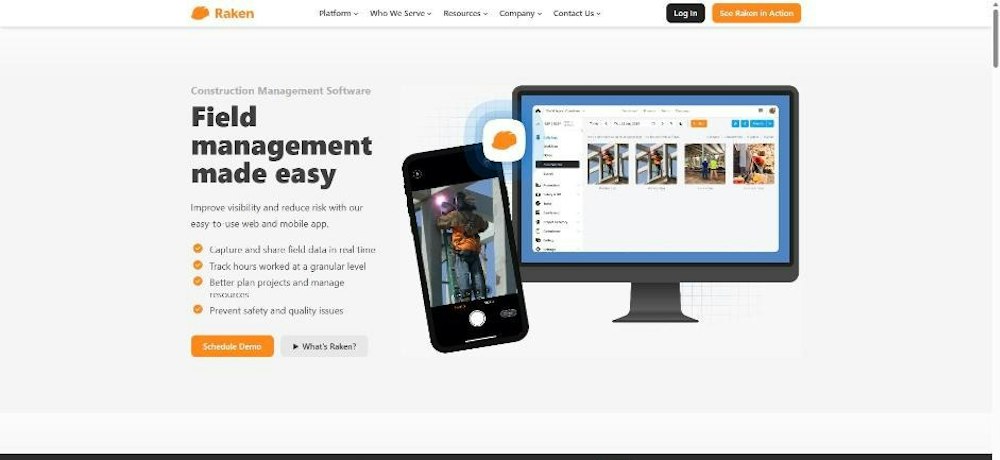
Raken's construction time tracking software helps workers capture and share timesheet data straight from the jobsite. A supervisor can track time for crews, you can add unlimited custom cost codes, and payroll policies handle overtime, breaks, rounding, and union rules. In Raken kiosk mode, employees clock in and out on one shared device.
Raken's geofencing can block clock interactions outside the project radius, and it integrates with Sage, Foundation, ComputerEase, QuickBooks, Viewpoint, and Paychex.
How to buy: Raken shares pricing on request and offers free support and onboarding. Its sales team sets up a free 15 day trial of the Performance plan.
Plan ahead: you start the trial through sales rather than self sign-up, so you'll want to allow time for that call.
12. ExakTime: best for construction crews that want rugged on-site clocks
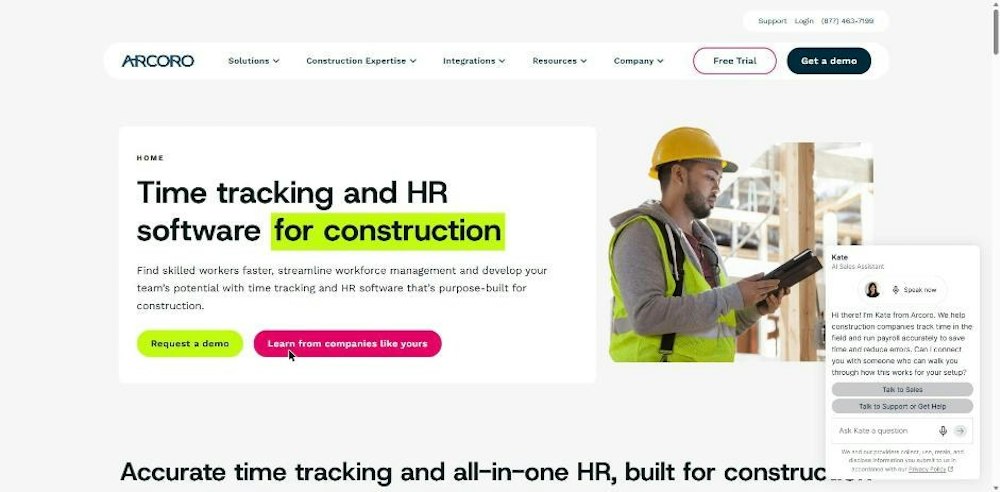
ExakTime is now sold as Arcoro Time, which helps construction crews and contractors track time. Arcoro Time's GPS time tracking app can limit clock-ins to a specific jobsite and stores time and location data while offline. Its rugged time clocks use colored key fobs for different job codes or locations.
Arcoro Time lets you assign project and cost codes to employee hours, and a dedicated implementation team guides onboarding. There's live integration with QuickBooks and Sage 100 Contractor.
Contract pricing: Time Essential starts at $9 and Time Professional at $12 per employee per month, billed annually. A zero-risk 14-day free trial starts with a form and an appointment with an Arcoro Time expert.
Contract terms: you're signing an annual contract with annual payment terms.
13. BusyBusy: best for construction companies that want to start free
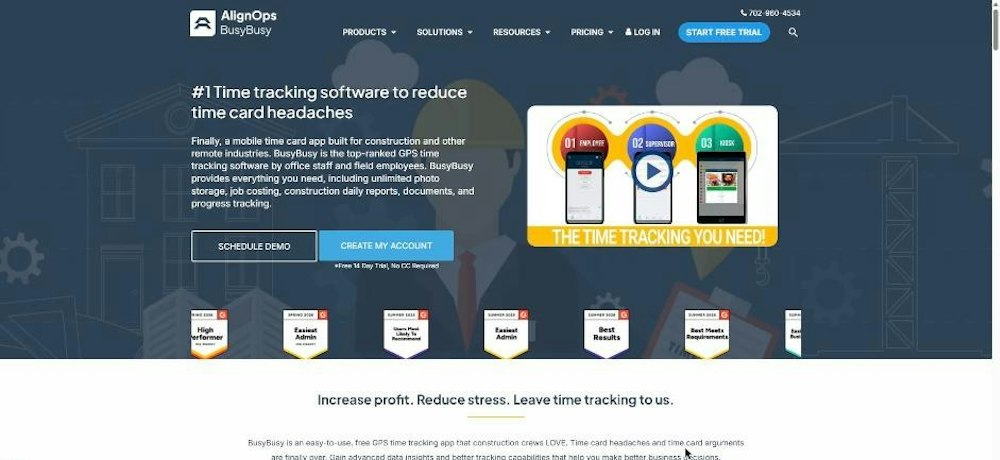
BusyBusy says it's built by construction companies for construction companies. It sends a GPS-based reminder to clock in when workers step on the job site, keeps working offline, and lets a site supervisor clock the full crew in and out at once. Employees can be required to choose a project and cost code when they clock in, and it integrates with QuickBooks Online, ADP, and Procore.
Free plan and pricing: the free account includes GPS time tracking, job costing, equipment tracking, and unlimited users, and you can try Pro free for 14 days. Pro is $9.99 per user, per month, billed annually, or $11.99 billed monthly, which also covers daily schedules.
Admin fee: monthly-billed per-user pricing adds a $40 Admin license, with the first user included, so factor it in if you'd rather pay monthly.
14. HCSS HeavyJob: best for heavy civil and utility contractors
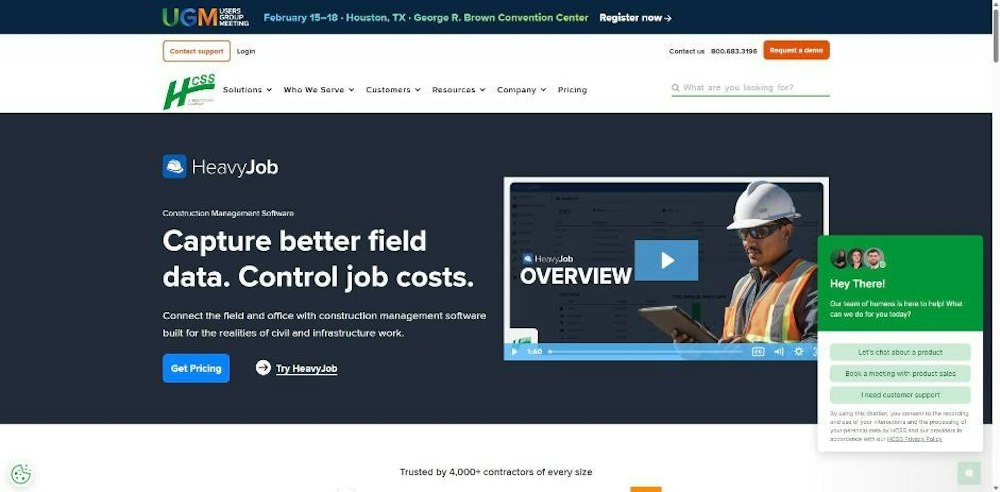
HeavyJob is designed for self-performing civil, infrastructure, and utility contractors. Crews and foremen create time cards for crew hours, equipment hours, and quantities, job costing flags cost codes trending over budget, and approved time cards export to payroll or accounting systems like Sage, ViewPoint, and QuickBooks. HCSS assigns a dedicated implementation specialist to manage your rollout.
HeavyJob's time card works like familiar paper cards for foremen and functions offline on any mobile device. For crew scheduling, the HCSS Resource Planner is built for construction planning.
Quote and support: HCSS builds a custom quote based on your needs, and its 24/7 support is available 365 days a year.
Fit check: HeavyJob is built around foreman time cards for heavy civil work, so it's worth confirming how your crews will clock in before you request an HCSS quote.
15. Homebase: best for restaurants, retail, and hospitality teams
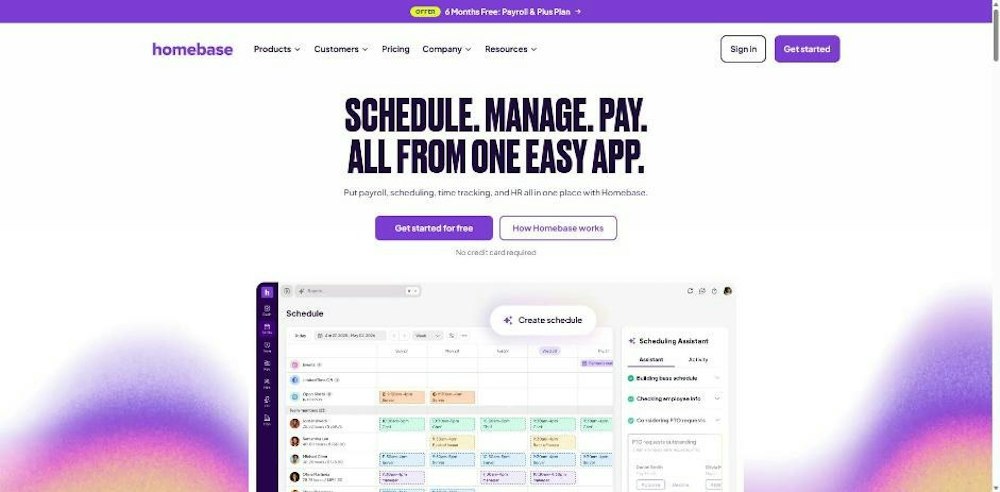
Homebase is a solution for restaurants, retail, hospitality, and more. It offers a GPS time clock that prevents clock-ins before employees arrive at the job site, a secure PIN for each person, labor costs by role or department, and integrations with ADP, Gusto, and QuickBooks.
Plans by location: Basic is $0 per location per month for 1 location and up to 10 employees, Essentials is $30 per location per month, and you'll get a free 14-day trial of All-in-One. It can capture photos when team members clock in on tablets and lets employees trade and claim open shifts.
Location pricing: pricing is per location, basic time tracking stores timesheets for up to 90 days, and Payroll is an add-on with a $49 base fee per month plus $6 per employee paid.
Shift scheduling, job scheduling, or project time: which do you need?
The kind of scheduling you need decides which time clock app fits. Shift scheduling assigns people to hours, job scheduling sends crews to work at specific sites, and project time tracks hours against budgets. Pick the type first, because a strong shift scheduler isn't always the right tool for dispatching crews to job sites.
- Employee shift scheduling: you assign hourly staff to shifts at one or a few locations and manage trades and open shifts. Homebase lets employees trade, cover, and claim open shifts. Connecteam, OnTheClock, and Buddy Punch also fit this pattern.
- Field job scheduling: you send crews to different job sites each day and want time tied to the job. With ClockShark crew scheduling, employees see the job they're doing for the day and clock in from their schedule. Workyard (on Pro), BusyBusy, and CrewTracks also schedule crews to jobs, and Raken resource scheduling handles one-off or recurring shifts.
- Project time tracking: you track hours against projects, clients, or budgets more than you dispatch crews. Clockify's built to track work hours across projects, and QuickBooks Time Elite adds project tracking and estimates vs. actuals.
If your crews do field jobs, you'll want scheduling and the time clock in the same app, so the schedule becomes the clock-in screen.
How to roll out a time clock app in your first week
Rolling out a time clock app in your first week works best when you set up one crew at a time and test it before payroll depends on it. The steps below use ClockShark as the example, and the same sequence works for most apps on this list. Start small, fix what breaks, and don't add the rest of your crews until the pilot week runs clean.
- Add your employees. In ClockShark, once the admin adds employees from the desktop, they receive an email with login information and a link to download the app.
- Create jobs and tasks. Add jobs from the office, or let the crew add them from the field. In the mobile app, the tasks are the labor cost codes you prefilled, and workers choose the job and task before they clock in.
- Draw your geofences. Set up geofence time tracking that flags out-of-bounds clock-ins, so employees are alerted to clock in, clock out, or switch tasks when they enter or exit a job site.
- Build the first week's schedule. Use the drag-and-drop editor to create shifts with the right employees, jobs, and tasks, and let ClockShark notify the crew of changes.
- Pilot with one crew. Pick a crew and a foreman. With Crew Clock, a supervisor can clock in one crew member at a time or the entire crew at once, which covers anyone without a phone.
- Review and approve the week's timesheets. GPS tracking attaches a marker to every clock-in and out on a map, so managers can approve or reject timesheets with confidence. Count how many punches needed fixing.
- Export to payroll. Send approved timesheets into payroll with a few clicks through integrations such as QuickBooks and ADP.
Keep the records once you go live. Federal rules require employers to preserve supplementary basic records such as time cards for at least 2 years, under the federal rule on preserving supplementary records.
How field crews made the switch
Bear Down Builders LLC, a general contractor in Tucson, Arizona, ran on paper timesheets that crews never filled out accurately and a physical punch clock whose data had to be adjusted. As the Bear Down Builders customer story describes, the geofence now shows when crews come and go on job sites, and who is clocked in.
Unique Stays, a Michigan company that builds and manages short-term rentals, started with hours written on paper and sent by text. The Unique Stays customer story explains that geofencing, Crew Clock, and multiple jobs and tasks gave site workers and the admin team what they need, and Crew Clock and Kiosk options solved the problem of employees forgetting their phones. Both teams leaned on the same pieces as the first-week rollout above: geofences on job sites and a Crew Clock or kiosk for workers without phones.
Once the rollout settles, the change shows up with crews first. Damon P., a construction contractor, wrote in a ClockShark review on Capterra that the app became a normal routine for employees, and that "everyone knows it and feels like they have control over their own timecards."
Then it reaches the office. Moises A., a stationary engineer, wrote in a Capterra review of ClockShark: "The ability to integrate ClockShark with other software tools, such as QuickBooks, has streamlined my workflow and made managing payroll and invoicing much simpler." Cass C., an office manager, described the job side: "We are now tracking time far more reliably and are able to keep up with what stages jobs are at which means we can invoice out much faster."
Choose the best time clock app for your crews
Choose the best time clock app by matching it to how your crews work, then test it with one crew. When your crews move between job sites, ClockShark gives you GPS clock-ins, geofences, Crew Clock, scheduling, job costing, and payroll export in one app, with free onboarding during the trial.
If you're running an hourly shift team at fixed locations, Homebase or Connecteam may fit better. If you run QuickBooks Online, look at QuickBooks Time.
Start a free ClockShark trial and set up one crew this week.
FAQs about time clock apps
Which is the best clock app?
For field service and construction crews, the best clock app is ClockShark, because its time tracking software for field crews reminds crews to clock in at job sites, lets one person track time for the whole crew from a single device, and exports timesheets into payroll. If you're scheduling hourly shifts, a shift-focused app may fit better.
To narrow it down, match your crew type and payroll system against the comparison table above, then run the first-week rollout with one crew before you commit.
Do time clock apps work without cell service?
Yes. With ClockShark, workers can clock in and out without cell service, and the recorded times sync when an internet connection is restored, as the ClockShark GPS time clock app page explains. That matters on remote job sites, in basements, and in rural areas where coverage drops partway through the day.
If your crews often work out of range, test offline clock-ins during the trial week. Don't wait until every crew depends on it.
Which time clock apps work with QuickBooks payroll?
ClockShark works with QuickBooks payroll: it connects with top accounting and payroll software, including QuickBooks, ADP, Sage 100 Contractor, Xero, Paychex, Gusto, and MYOB, and exports timesheets right into your payroll or accounting system, so approved hours reach payroll without retyping them.
It's still worth checking that the export matches how your payroll handles overtime and job codes.
How do time clock apps stop buddy punching and time theft?
Time clock apps cut time theft by checking where each employee clocks in. ClockShark's geofence time tracking detects when an employee clocks in for a specific job but is out of bounds of the job site and sends a notification, so you can correct problem clock-ins before they reach payroll.
ClockShark Map adds a second check: the mobile app periodically marks an employee's location, leaving a breadcrumb trail of the sites they visited, and the Who's Working Now list shows the specific job and task each employee is working on. Neither check can tell who is holding the phone, so pair them with weekly timesheet approval.
How do time clock apps remind crews to clock in?
ClockShark reminds crews in two ways. You can set timesheet reminders for employees to clock in or out at the start and end of their scheduled shifts, and geofence alerts tell employees to clock in, clock out, or switch tasks every time they enter or exit the geofenced area around a job site.
Turn on both during the pilot week, then count how many punches still need fixing so you'll know whether they're working.
Can you try a time clock app for free?
Yes. ClockShark trial accounts get all the features of the Pro plan for 14 days, per the ClockShark pricing page, and all customers get live help and setup assistance, even during the trial. Once you're signed up, you'll only pay for users that are active, for the days they were active.
Use the trial to run one full payroll period with a single crew before you add the rest.